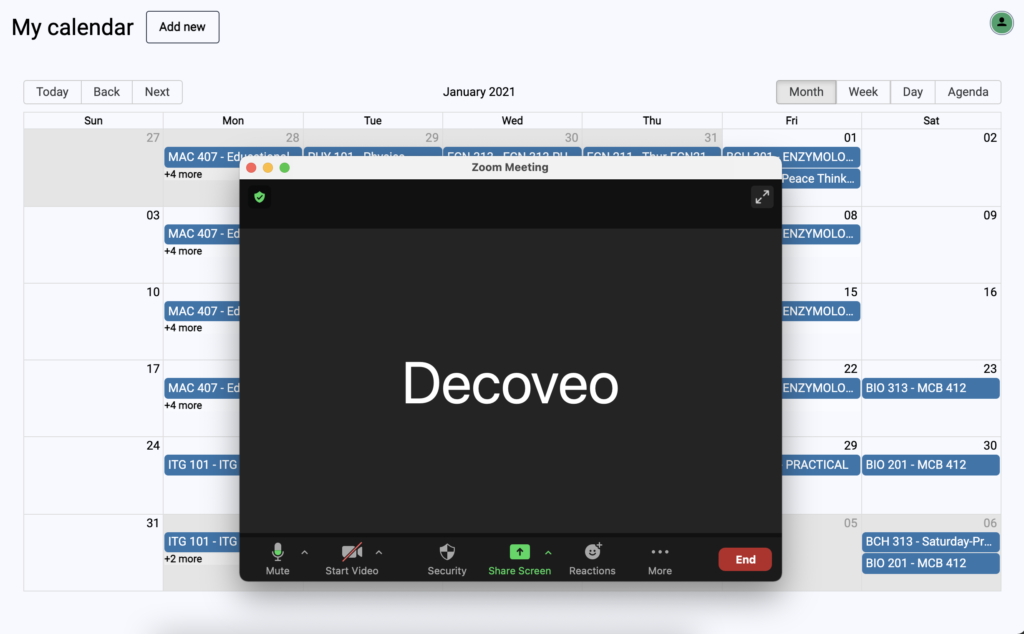
This documentation should guide you through the process of installing, using and uninstalling the ScreenLine Zoom app.
Installing the ScreenLine app
Log into ScreenLine using your account credentials.
On the main menu, click on My calendar.
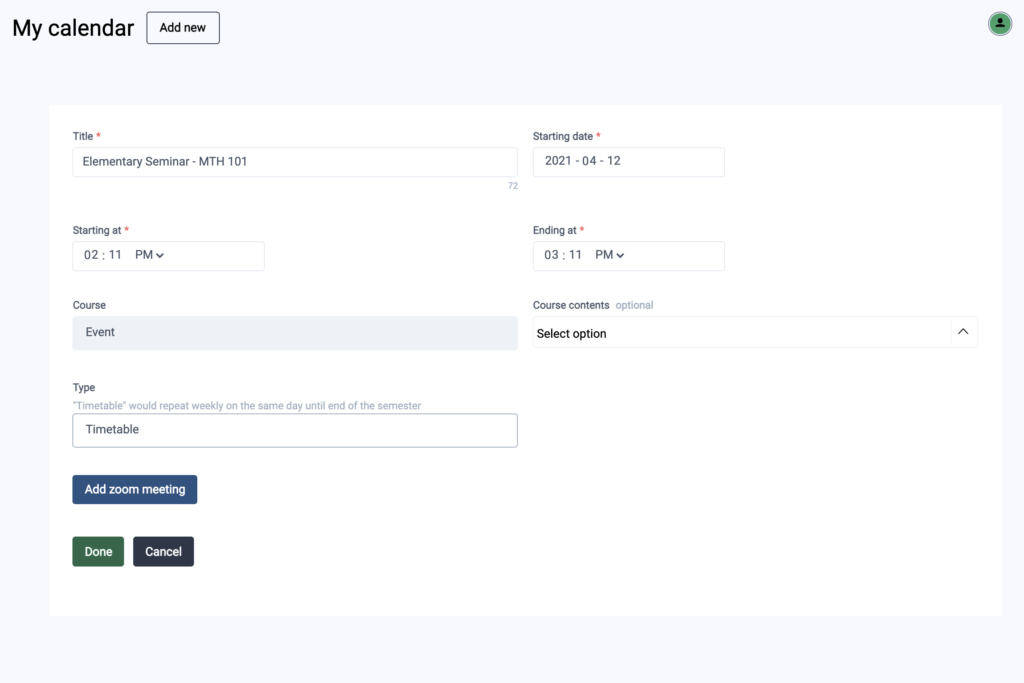
Click on the Add new button at the top of the page.
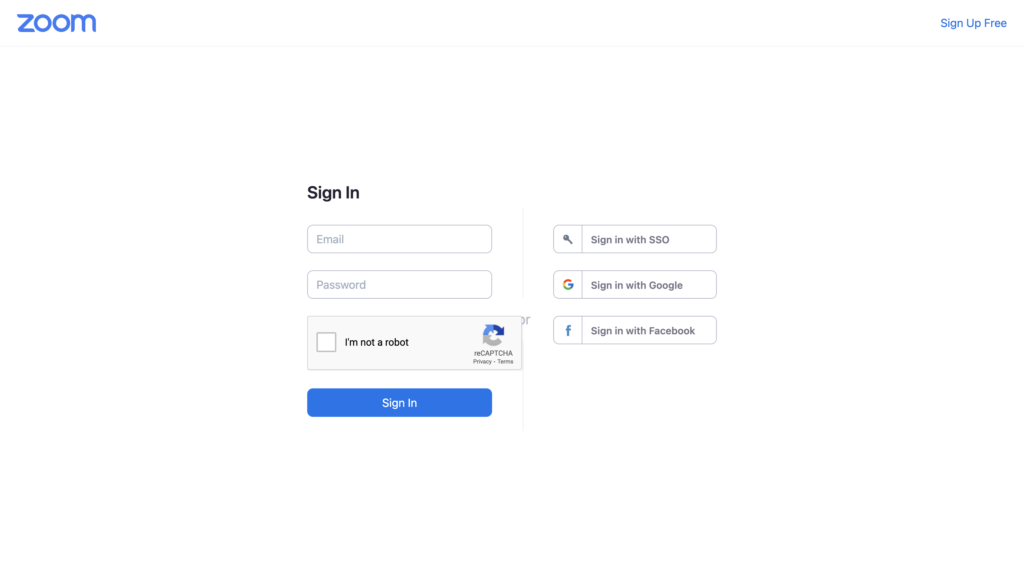
Click the Add zoom meeting button to install the app. This will redirect you to the Zoom website where you log in and authorise the app. You will be automatically redirected back to the portal where you’ll continue creating the meeting.
Using the ScreenLine app
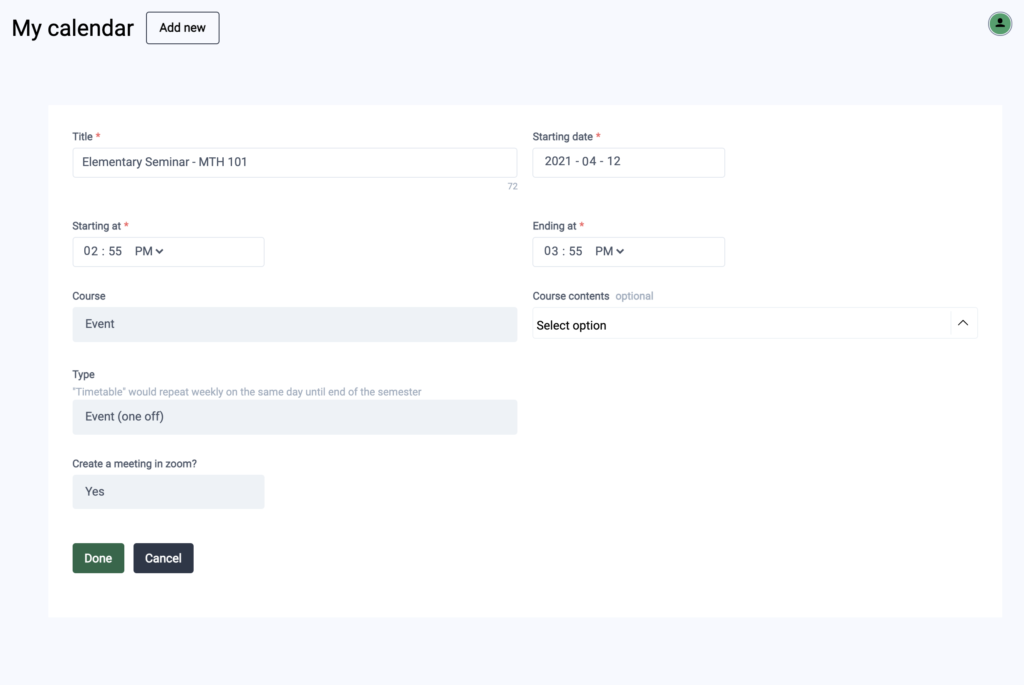
On the create meeting page, you will now see the Create a meeting in zoom drop down option.
Select Yes to create the Zoom meeting.
Complete the meeting form as usual.
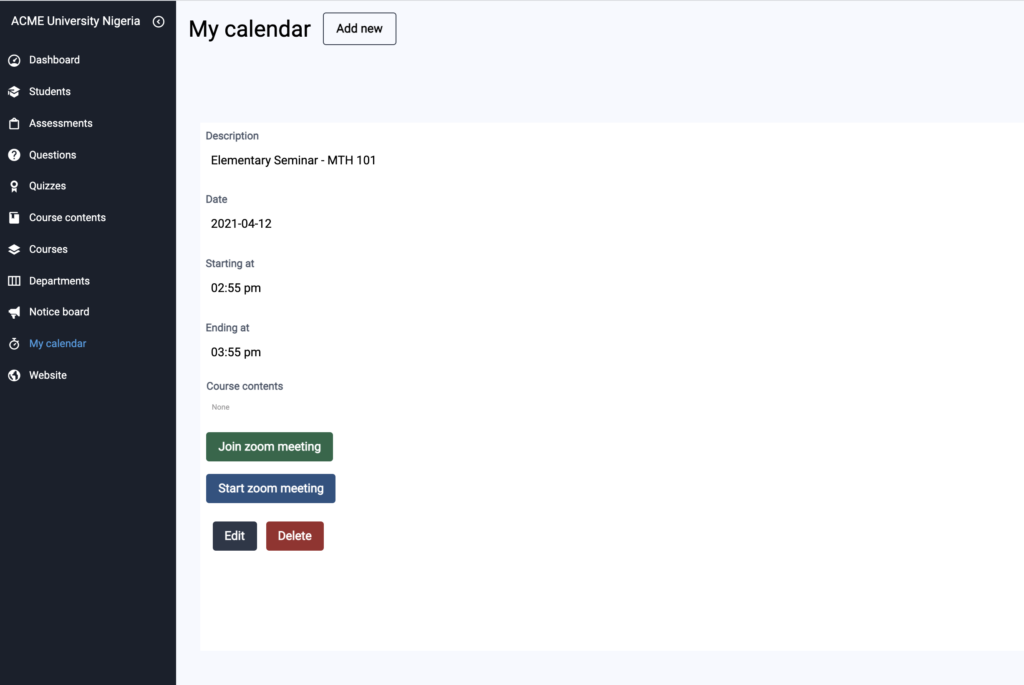
Click the Done button the create the meeting. The new meeting can also be seen when you log into your Zoom account.
Click the Join zoom meeting button to join a meeting or the Start zoom meeting button to start one if you are the host.
Uninstalling the ScreenLine app
Log into your Zoom account and navigate to the Zoom App Marketplace.
Click Manage > Installed Apps or search for the ScreenLine app.
Click on the ScreenLine app.
Click Uninstall.
Support
Kindly contact your institutions IT department for support if you encounter any issue during this process.